

.png) Lars Baad-Jensen
Lars Baad-Jensen
Written 16 Jun 2026, 12:52:30 by Lars Baad-Jensen
At the Zabbix Summit 2025, we met a guy in the elevator who was also attending the event. It turned out to be Stephen Stack, the CTO of rConfig — and we got the full “elevator pitch” right then and there.
After that conversation, we were definitely eager to team up with him. We had a use case where we needed to back up device configurations, and rConfig seemed like a perfect fit.
Back in Denmark, I immediately installed the v6 Core Docker version. After getting it up and running, I was extremely impressed by what the free version could do. Note: v8 Core is now available.
We started with the Core version, which is available as a free download. Installation was straightforward by following the documentation.
The UI
Once installation is complete, navigate to the server URL and you are greeted by the login page.
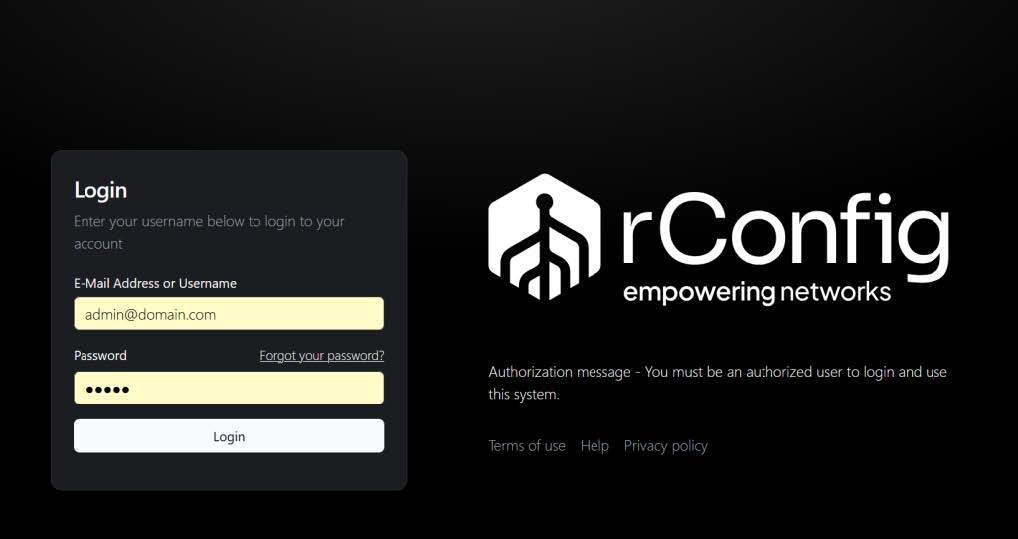
The UI is clean and intuitive. As a new user, it was very quick to get up and running.
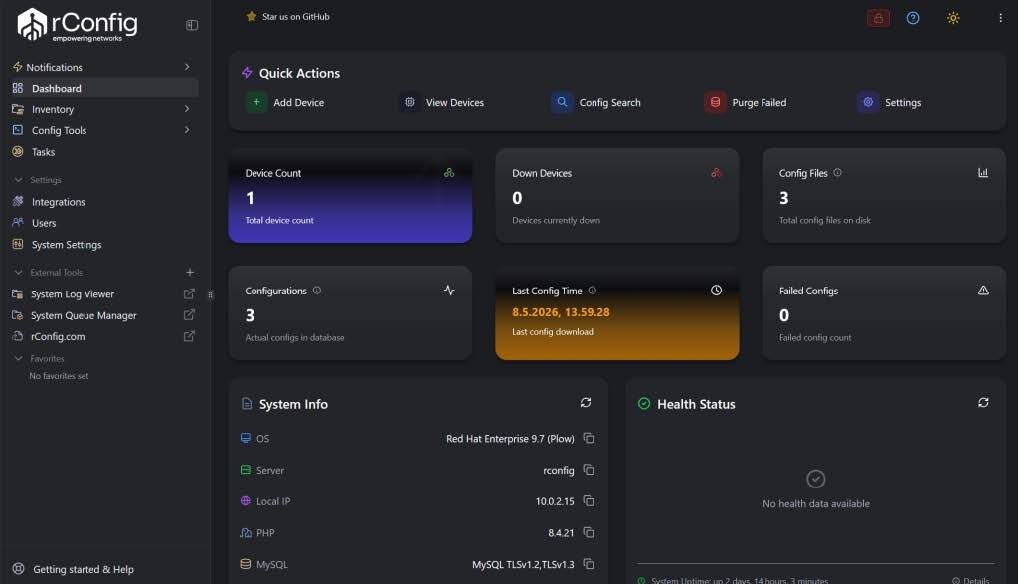
The inventory
The Inventory section is where most of the setup is done. It contains the following sub-sections:
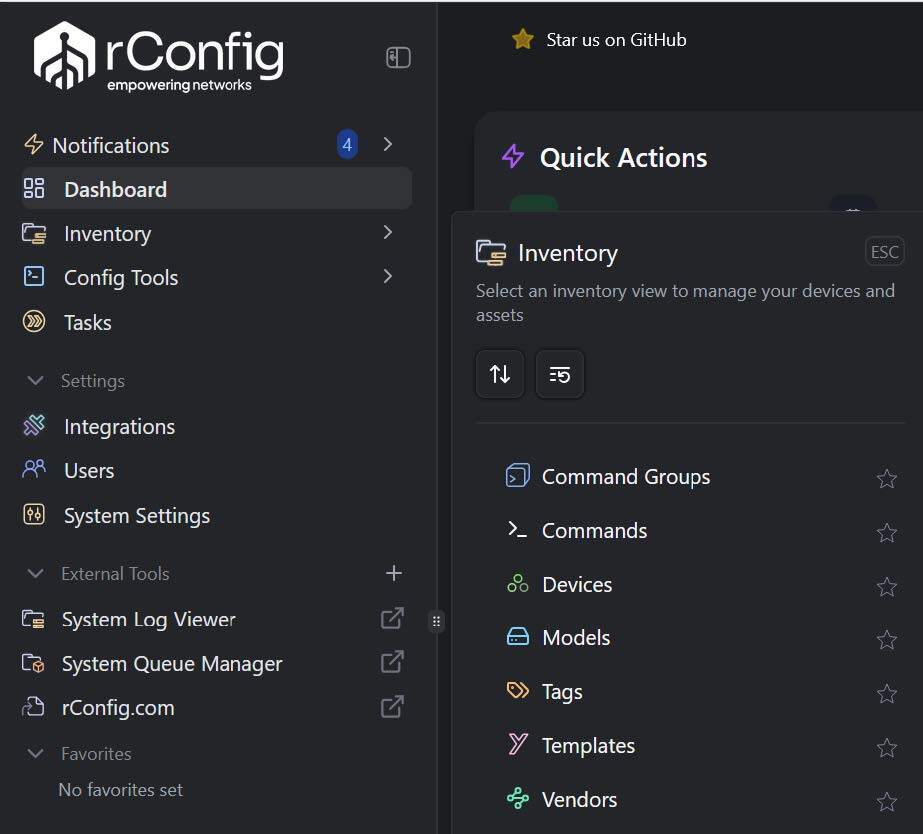
- Command Groups — organize commands into logical groups
- Commands — the individual commands themselves
- Devices — all your managed devices
- Models — the device model or model name
- Tags — labels used to categorize and filter your devices
- Templates — defines the initial commands sent to a device. Many community templates are available on the GitHub page. See also the template documentation.
- Vendors — your device vendor
Once everything is configured, you are ready to perform your first device backup.
Add a command
To back up only the uncommented lines from a Zabbix server config, use this command:

(grep -v “^#” /etc/zabbix/zabbix_server.conf | grep -v “^$”)
Add a device
Here is how I set up my Raspberry Pi:
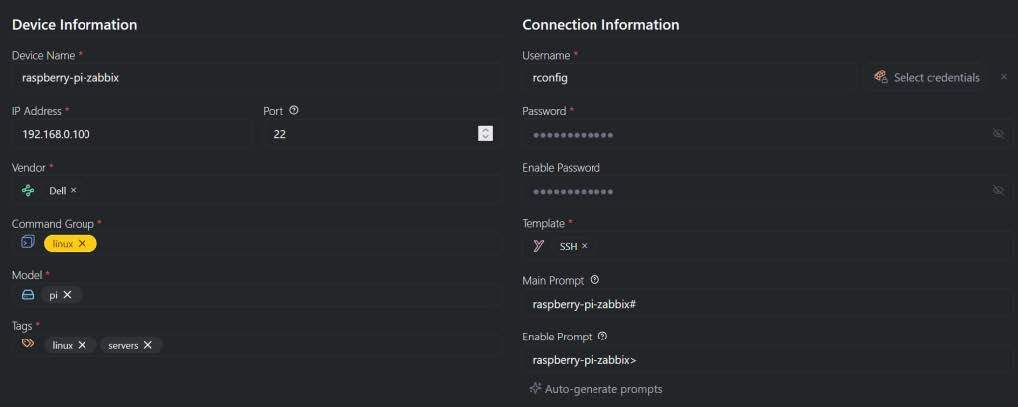
The Main Prompt and Enable Prompt fields are populated automatically when you click “Auto-generate prompts.”
Add a task

Your Linux Zabbix config files will now be backed up on a daily schedule.
rConfig is not limited to network devices — it can back up any device as long as you can log in, run a script, or execute a command from the rConfig server.
Scheduled tasks
To run backups on a schedule, go to Tasks and create a task with the appropriate frequency.

Show configs
You can review backed-up configurations under “Config Tools” or directly on the device page. Finding specific backups and comparing versions is very easy.
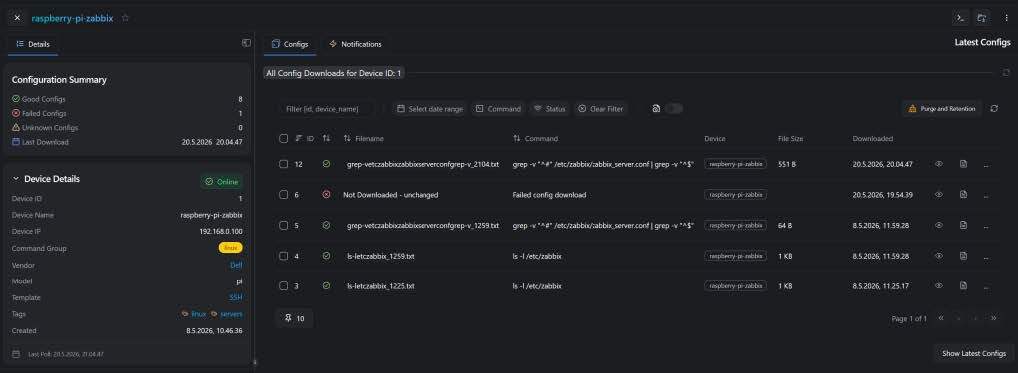
Again very easy to see, and find just what has been backed up and the different versions.
Conclusion
This was a quick walkthrough of the rConfig Core version, and this version could be enough for you if you need:
- A working NCM version
- Always free
- The ability to back up much more than just network devices
A whole new application opened up when we got the paid version, which was a very big surprise for us. More on this in another blog post.